How to make a sticker from a video on iPhone
Short answer
Open the video in Snippie, pause on a frame where your subject is clear, press and hold the person, pet or object until it lifts out, then tap Make Sticker. Snippie cuts the subject out of every frame and loops it, so you get a moving sticker with a transparent background for iMessage, WhatsApp or as a GIF.
- iPhone & iPad · iOS 17+
- iMessage & WhatsApp
- Made on your device
Can the iPhone do this without an app?
Partly. In the Photos app you can pause a video, touch and hold the subject and copy it out, but that gives you a still image of one frame. Apple’s own animated stickers (Live Stickers, iOS 17 and later) are made from Live Photos, not from regular videos.
Snippie keeps the motion from any video in your library: you choose the moment and the length, and the cutout follows the subject through every frame.
Make a moving sticker from a video, step by step
Pick your clip
Open Snippie and tap Pick a Video or Live Photo, then choose a clip from your photo library. Large videos can take a moment to load.
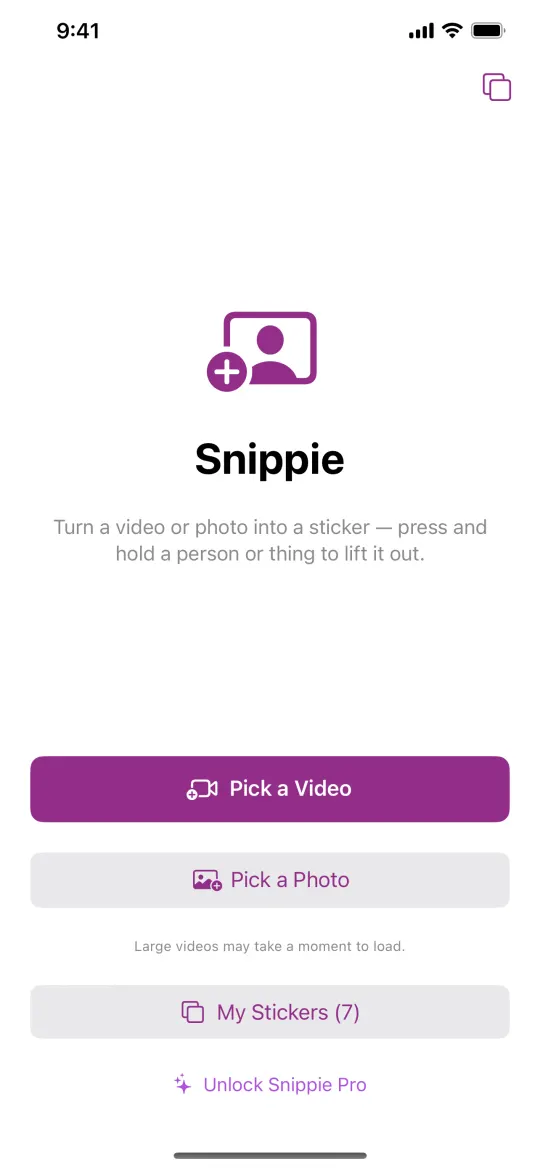
Pause, then press and hold the subject
Play or drag the slider to a frame where your subject is clearly visible and pause. Press and hold the person, pet or object you want: it lifts out with a glow. If nothing lifts, press directly on the subject.
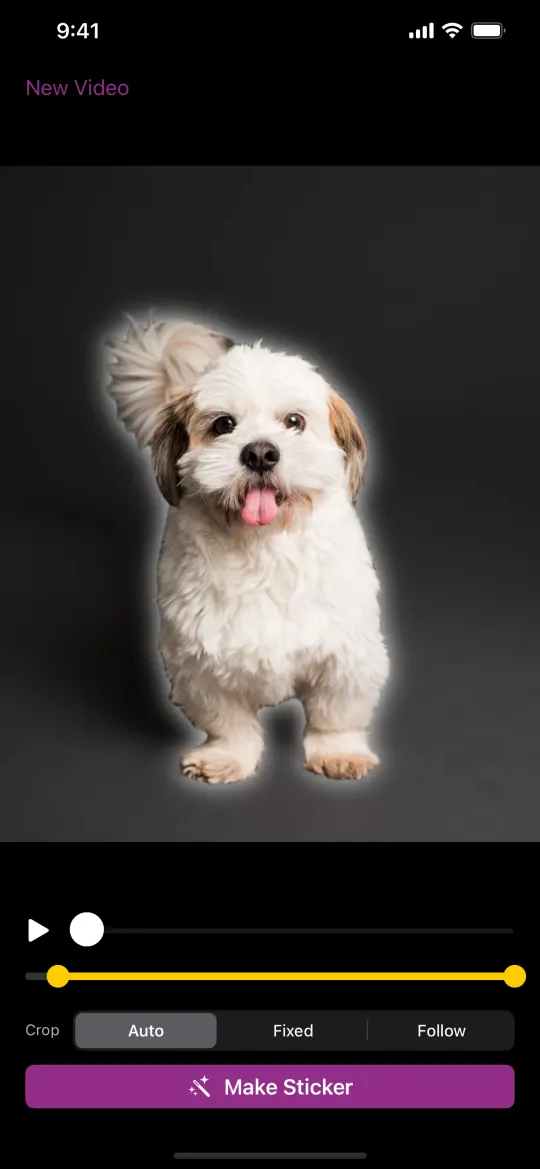
Tap Make Sticker
Optionally drag the yellow handles to choose which part of the clip becomes the sticker, and pick a Crop: Auto, Fixed or Follow. Then tap Make Sticker. Snippie follows the subject through every frame, removes the background and finds a smooth loop.
Style it and share it
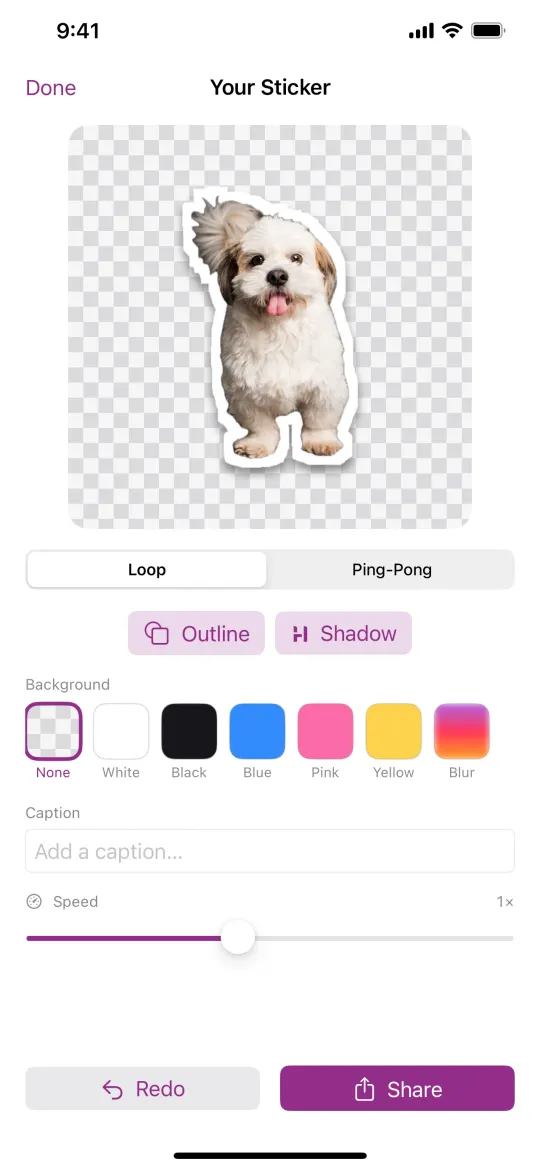
Choose Loop, Ping-Pong or Reverse, and add an outline, a shadow or a caption if you like. The sticker is saved to My Stickers automatically. Tap Share to send it, save it to Photos, copy it, or export it as an APNG or GIF file.
Tips for a clean cutout
- Pick a clip where the subject stays in the frame: if it walks out, Snippie shortens the clip and tells you.
- If the loop doesn’t join up smoothly, Snippie suggests Ping-Pong, which plays forward then backward.
- Fix Cutout lets you paint with your finger to erase stray bits or bring back parts the cutout missed.
What’s included and what needs Pro
Snippie is free to download, and making, styling and sending stickers works without paying. Stickers made with the free version carry a small “Made with Snippie” watermark. Snippie Pro is a one-time in-app purchase, not a subscription: it removes the watermark and adds all backgrounds, speed control and Save as Live Sticker.
Questions
Can I make a sticker from any video?
Any video or Live Photo in your iPhone’s photo library. You choose the subject by pressing and holding it, so it works best when the person, pet or object is clearly visible in the frame you pause on.
Does Snippie upload my video?
No. The cutout runs on your iPhone with Apple’s Vision framework, and your videos are never uploaded. There is no account.
Is it automatic AI?
You pick the subject yourself by pressing and holding it. Snippie then separates it from the background and follows it through the clip on your device. It does not generate stickers from text.
Which iPhones does it work on?
iPhone and iPad with iOS 17 or later. There is no Android, Mac or web version.
More Snippie guides

Make your first moving sticker
For iPhone and iPad. Free to download · optional one-time Pro.
Download on theApp StoreAll how-to guidesAbout SnippieSupportPrivacy policy© 2026 AW Labs