How to turn a Live Photo into a moving sticker
Short answer
On iOS 17 or later you can do it in the Photos app: open the Live Photo, touch and hold the subject until it lifts, then tap Add Sticker. To choose the exact moment, add an outline or caption, or send it to WhatsApp, open the Live Photo in Snippie instead, press and hold the subject and tap Make Sticker.
- iPhone & iPad · iOS 17+
- iMessage & WhatsApp
- Made on your device
Apple’s way or Snippie: which to use
Apple’s Live Stickers are free, built in and go straight to the sticker drawer in Messages and the emoji keyboard. Use them when the whole Live Photo is what you want.
Snippie is for more control: pick the frame and trim the motion, choose Loop, Ping-Pong or Reverse, add an outline, shadow or caption, add stickers to WhatsApp as a pack, or export a GIF. It works on regular videos too, not only Live Photos.
Turn a Live Photo into a moving sticker with Snippie
Pick the Live Photo
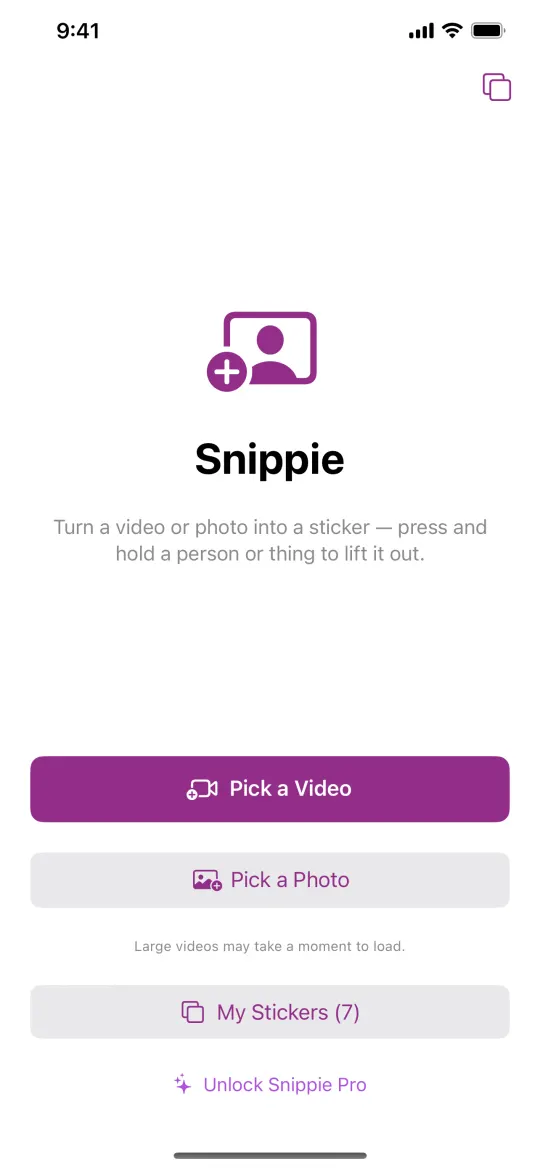
Open Snippie and tap Pick a Video or Live Photo, then choose the Live Photo. Snippie opens its moving part, the short clip the camera records around the photo.
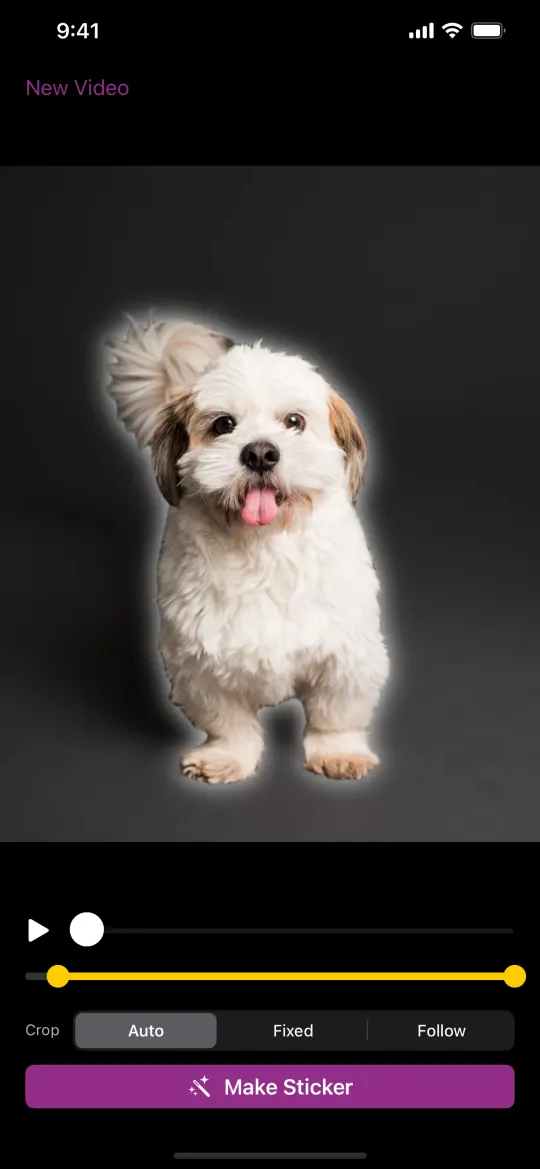
Pause, then press and hold the subject
Play or drag the slider to a frame where your subject is clearly visible and pause. Press and hold the person, pet or object you want: it lifts out with a glow. If nothing lifts, press directly on the subject.
Tap Make Sticker
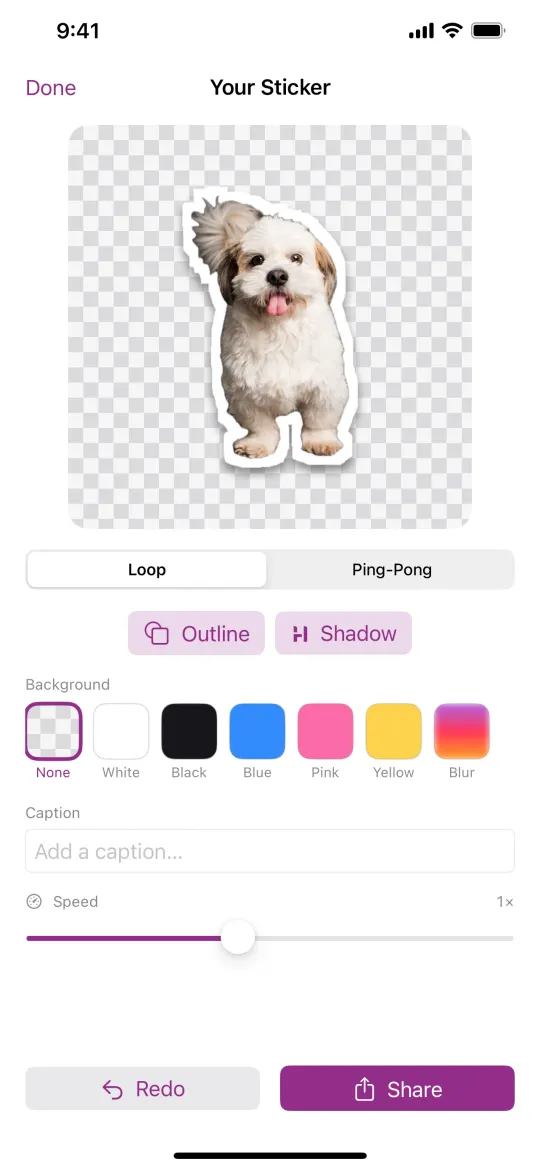
Optionally drag the yellow handles to choose which part of the clip becomes the sticker, and pick a Crop: Auto, Fixed or Follow. Then tap Make Sticker. Snippie follows the subject through every frame, removes the background and finds a smooth loop.
Send or save it
The sticker is saved to My Stickers. Send it in Messages from the Snippie drawer, add it to a WhatsApp pack, or tap Share to save or export it. With Pro, Save as Live Sticker puts it back in Photos as a Live Photo, ready for Apple’s sticker drawer.
Adding a Snippie sticker to Apple’s sticker drawer (Pro)
- Apps can’t add to the iPhone’s own sticker drawer themselves, so the last step happens in Photos.
- After Save as Live Sticker: open Photos (your sticker is the newest Live Photo), touch and hold the subject until it lifts, then tap Add Sticker.
- It’s then in your stickers in Messages under + → Stickers, and in the emoji keyboard.
What’s included and what needs Pro
Snippie is free to download, and making, styling and sending stickers works without paying. Stickers made with the free version carry a small “Made with Snippie” watermark. Snippie Pro is a one-time in-app purchase, not a subscription: it removes the watermark and adds all backgrounds, speed control and Save as Live Sticker.
Questions
Do I need an app to make a sticker from a Live Photo?
No. On iOS 17 or later, the Photos app can do it: touch and hold the subject of a Live Photo, then tap Add Sticker. An app like Snippie adds control over the moment, styling and WhatsApp packs.
Can I use a still photo?
Yes. Tap Pick a Photo in Snippie to make a still sticker from any photo.
What is Save as Live Sticker?
A Snippie Pro button that saves your styled sticker to Photos as a Live Photo, so you can add it to Apple’s sticker drawer from Photos in three taps.
More Snippie guides

Make your first moving sticker
For iPhone and iPad. Free to download · optional one-time Pro.
Download on theApp StoreAll how-to guidesAbout SnippieSupportPrivacy policy© 2026 AW Labs